If you have ever lost a tab, you know the feeling.
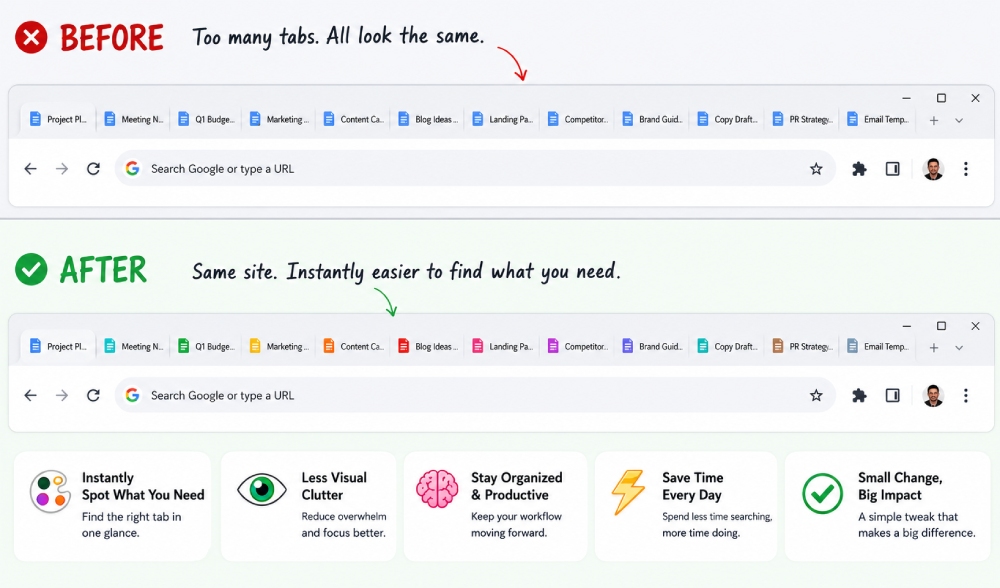
You have a dozen windows open. Three are Google Docs. Two are the same project board for different clients. You keep clicking and hoping.
Tab Colorizer Pro fixes that. What we hear most often is simple, people cannot believe how long they worked without it.
The Freelancer with Multiple Clients
Freelancers often work across the same stack for every client. Docs look the same. Boards look the same. Tabs become visual noise.
With color assignments by domain, Client A can be teal, Client B orange, and Client C purple. Context switching becomes visual instead of text scanning.
The Person with Two Google Accounts
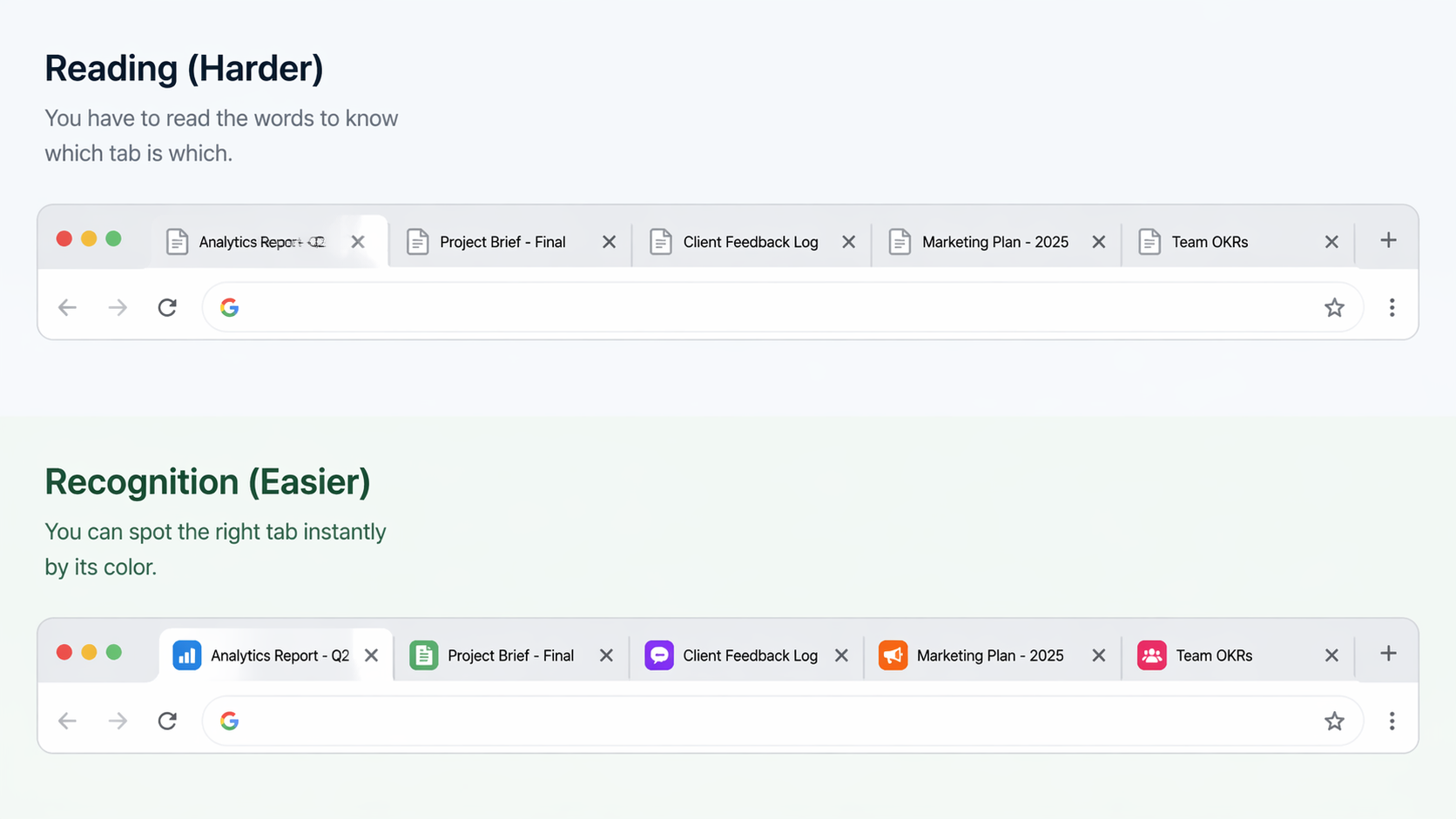
This is one of the most common use cases. Personal and work Gmail share the same favicon, and so do Drive, Calendar, and Docs.
Assign one color family to personal tabs and another to work tabs. The separation becomes visible immediately.
Support and Operations Workflows
Support and operations teams keep many copies of similar pages open at once, tickets, dashboards, and account views.
Color coding by status makes the tab bar work like a lightweight kanban system:
- Red for urgent
- Yellow for waiting
- Green for resolved
That visual signal reduces tab hunting and helps prioritize the next click.
Side Projects and Split Contexts
People balancing a day job and side project use color to keep those worlds separate. One color set for work, another for personal build time.
It sounds small, but it makes mode switching faster and less draining.
Setup Takes About 30 Seconds
The fastest path is right click, choose a color, and continue working. No shortcuts and no extra setup.
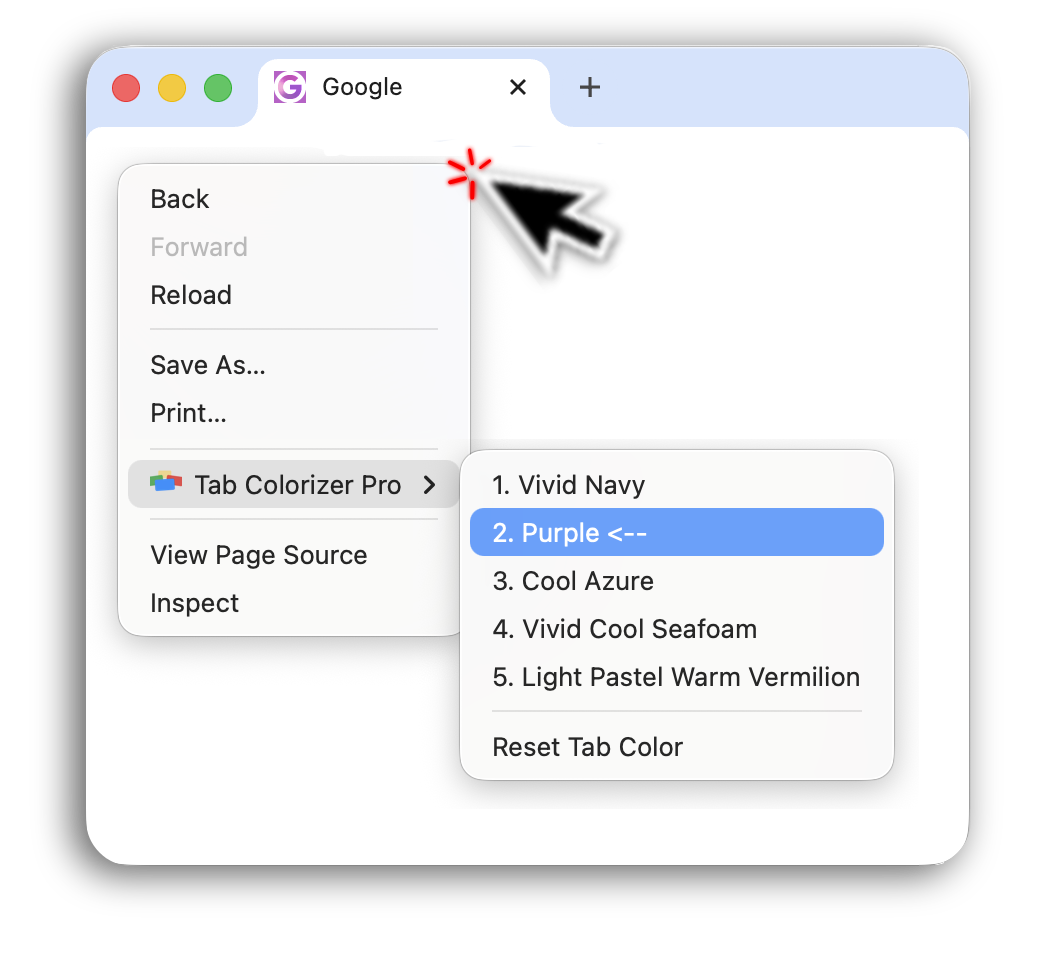
For repeat workflows, move to domain based assignment in settings so color rules apply automatically. It is ideal for people who live in the same tools every day.

Your Tab Bar Does Not Have to Feel Chaotic
Most people adapt to tab overload instead of fixing it. This extension solves one focused problem well, helping you identify the right tab instantly.
If you want to see it in action, watch the demo video, see pricing options, or read what tab color actually means for a deeper strategy.