You have 15 tabs open from the same website. Every one has the same favicon. The titles are truncated. Finding the tab you need means reading every title or clicking through them one by one.
You know which application you need. You just cannot tell which of its tabs contains the document, ticket, or record you were working on. Even four tabs can be annoying when they all look alike.
How can I distinguish multiple Chrome tabs from the same website?
Chrome normally displays the same favicon across pages from the same site because the website supplies the same icon for those pages. Tab Colorizer Pro can apply different colors to those favicons, making individual tabs visually distinguishable while preserving the recognizable site icon with its overlay mode. It changes the favicon inside the Chrome tab, not the background color of the entire tab.
Why tabs from the same website look identical
A favicon is the small website icon next to a page title in your browser tab. Websites commonly reuse that icon across their pages: a document editor uses its logo for every document, and a CRM uses its logo for every customer record. Chrome displays the icon supplied by the page; it does not automatically invent a different one for each record you open. MDN explains how websites provide favicons.
Sites can supply different icons for different pages, so sharing a domain does not technically require identical favicons. But many web applications use one consistent icon throughout the app. That is useful branding and a poor way to distinguish twelve pages inside the same tool.
Titles help until the useful part disappears. Several tabs might begin with “Quarterly Report” or end with the same application name. As tabs get narrower, the project name or ticket detail you need may be cut off.
Why the favicon matters when scanning tabs
A favicon gives you a compact visual cue without requiring you to read a title. You can recognize a spreadsheet icon among a mix of email, calendar, and document tabs. Open eight spreadsheets, though, and that cue no longer distinguishes one spreadsheet from another.
Different colors for the same favicon add a second cue: the icon identifies the application, and the color helps identify the page or context. A green spreadsheet icon can mean your working forecast; an orange one can mean the reference budget. You still have the title when you need to check details.
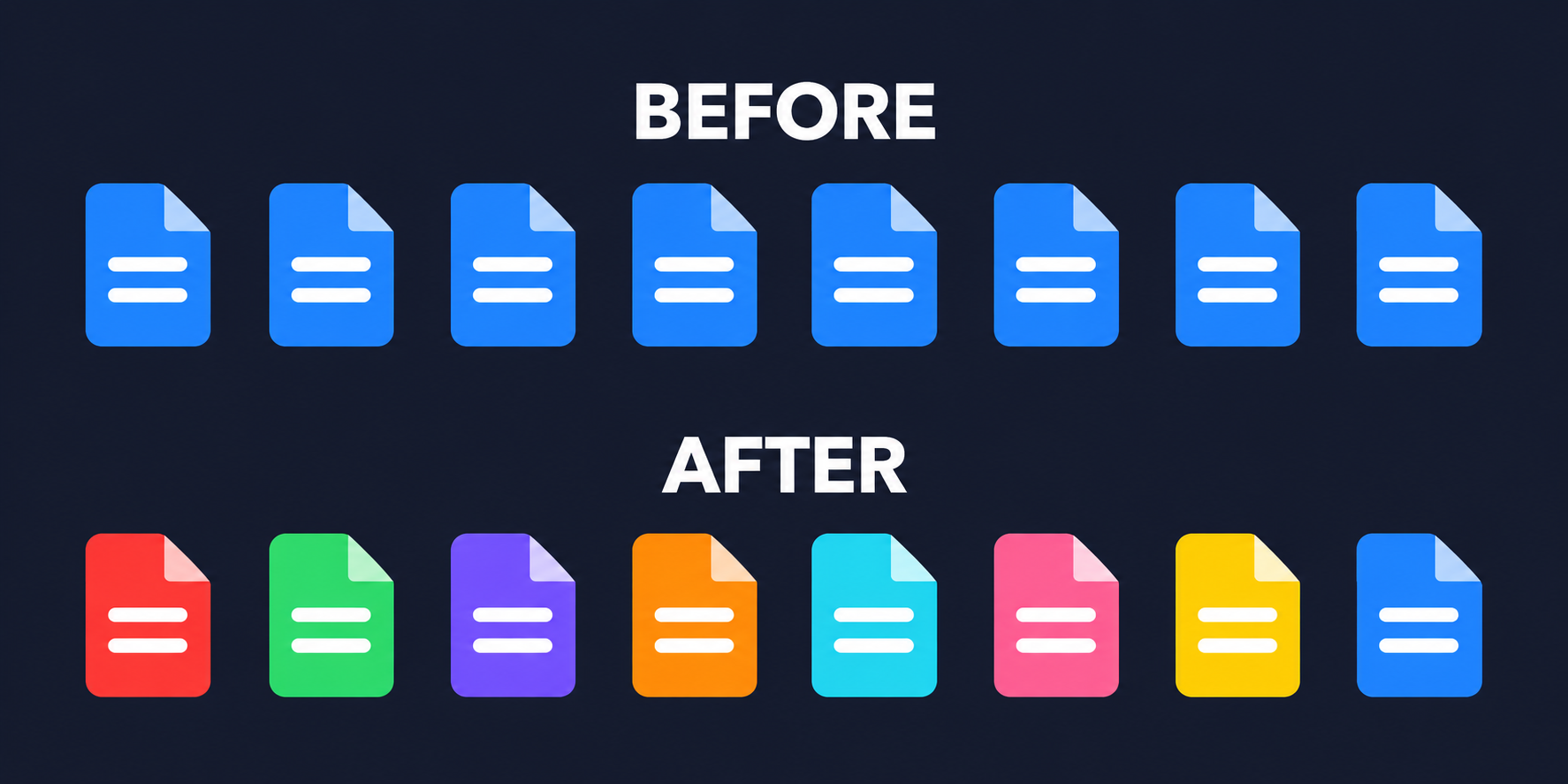
Before and after: the same favicon, different colors
Imagine four project pages from one application. Before coloring, all four display the same blue favicon. After coloring, they keep the same icon design, with a different color applied to each one.
Before: identical favicons
- Project AlphaBlue
- Project BetaBlue
- Project GammaBlue
- Project DeltaBlue
After: different favicon colors
- Project AlphaRed
- Project BetaGreen
- Project GammaOrange
- Project DeltaPurple
The example uses one generic document-shaped favicon for every project. These are differently colored versions of the same site's icon, not icons for four different websites. The tab backgrounds stay the same. This is a schematic illustration, not a Chrome screenshot; the actual appearance depends on the original favicon and overlay settings.
Start with colors you can easily tell apart. You do not need a unique color for every open page: marking the two or three tabs you return to most often may be enough. Keep descriptive titles too, especially if some colors are hard for you to distinguish.
Where same-site favicon colors help
These are examples of color choices you could make, not automatic classifications of your documents or records.
- Google Docs and Google Sheets: Give the draft you are editing a red favicon and the reference document a purple one. For several Sheets tabs, distinguish the working forecast, source data, and final report with separate colors. Each application keeps its own recognizable icon.
- Jira tickets: Use orange for a ticket you are investigating and green for a ticket you are ready to review. Those colors are your labels; a manual choice does not automatically track a ticket's status.
- Salesforce records: Distinguish the account you are discussing from another account or opportunity open beside it. The Salesforce icon alone tells you the application, but not which record is behind the tab.
- SaaS projects and dashboards: Give Project Alpha and Project Beta different favicon colors, or separate a live dashboard from a historical report within the same app.
- Admin interfaces and internal company applications: Use different colors for staging and production pages when their domains or URL paths distinguish them. Treat the color as a reminder and still check the URL before making changes.
The common thread is multiple tabs from the same web application. The icon already tells you where you are working. Color adds a clue about which page you need.
Manually color the favicon of an individual tab
Manual coloring is useful when you want one particular page to stand out now, without setting up a rule first.
- Open the page you want to identify in Chrome.
- Open Tab Colorizer Pro and choose a color for that page's favicon.
- Use the icon overlay settings to keep the original site's icon recognizable beneath the color.
- Choose another color for a second page from the same website, then compare their icons in the tab strip.
For example, make Project Alpha red and Project Beta green. When you return to your tabs, look for the red or green version of the app's icon instead of reading both titles from scratch.
Manual colors reflect the meaning you assign to a page. They do not rename the document or change its contents.
Automatically color favicons with domain or URL-pattern rules
Tab Colorizer Pro also supports rules that automatically apply favicon colors based on domains or URL patterns. Use domain rules to give an application a consistent color, and more specific URL patterns to distinguish pages or sections within that application.
A single domain-wide color does not solve the identical-favicon problem within that domain. If every page on your project site matches the same rule and receives blue, those tabs still look alike. To separate them, use distinct patterns for the pages you care about, or assign colors manually.
For a hypothetical internal app, you might choose red for URLs under app.example.com/projects/alpha/ and green for URLs under app.example.com/projects/beta/. An admin app might have separate /reports/ and /settings/ paths that you want to recognize at a glance. These are example URL structures; build rules from the actual addresses in your application.
For individual Google Docs or Sheets, a document-specific URL can distinguish one file from another. A general rule for the entire document app cannot tell your working draft from your reference file. Likewise, a URL rule cannot infer “urgent Jira ticket” or “important Salesforce account” unless a distinguishing part of the URL matches the rule you set.
Use the pattern-matching FAQ for rule options. Start with two clearly different URL patterns and check the resulting favicon colors before expanding the setup.
How favicon coloring differs from Chrome Tab Groups
Chrome Tab Groups let you organize tabs under a named, colored group. That can help you keep related work together. But the individual tabs inside a group can still display the same favicon.
A group called “Client work” may contain six Salesforce records with six identical icons. The group label tells you which collection you are looking at; different favicon colors help you recognize individual pages inside it.
Tab Colorizer Pro applies color to the favicon itself. It does not change the background color of the entire Chrome tab. You can use favicon colors alongside groups if both are useful. Our comparison of tab groups and favicon coloring covers that distinction in more detail.
Renaming documents, hovering over titles, and using tab search can also help you find a page. They are useful ways to check or retrieve a tab, but they do not give identical favicons different visual cues while you scan the tab strip.
Frequently asked questions
Why do all my Chrome tabs from one site have the same icon?
The website usually supplies the same favicon for all of its pages. Chrome displays that icon even when the tabs contain different documents, tickets, or records. Some websites provide page-specific icons, but many applications reuse a single logo.
Can Chrome tabs have different icons for the same website?
Yes. Pages on the same website can provide different favicons. When a site reuses one icon, Tab Colorizer Pro can apply different colors to it so individual pages have a distinct visual cue while retaining the site's recognizable icon in overlay mode.
How can I change the favicon color of a Chrome tab?
Use Tab Colorizer Pro to choose a favicon color manually, or create a domain or URL-pattern rule to apply colors automatically. Use an overlay setting that keeps the original icon visible if you want to recognize both the site and your chosen color.
Does Tab Colorizer Pro change the whole Chrome tab's background?
No. Tab Colorizer Pro changes the appearance of the favicon inside the tab. It does not change the background color of the entire Chrome tab.
How do I tell apart multiple Google Docs, Jira, or Salesforce tabs?
Give the pages you need to distinguish different favicon colors. For example, use purple for a reference document and orange for the one you are editing. Use manual choices for individual pages, or URL-pattern rules where their addresses provide a reliable distinction.
Will a domain rule give every tab from that site a different color?
A rule that applies one color across a domain gives matching pages that color. To distinguish pages within the same site, use different, more specific URL patterns or choose colors manually. The rule needs a URL distinction; it does not read the business meaning of a page.
Try it on the tabs you keep confusing
Pick two pages from the same website that you regularly mix up. Give their favicons different colors and see whether you can find the right one more easily. That is the problem Tab Colorizer Pro is built to help solve.
Try the interactive demo to see favicon coloring in action, or see plans and pricing before installing.